
How to Master a Song With AI: Mix Prep, LUFS and Fair A/B
Master a finished mix with AI online: prepare the file, understand LUFS and true peak, compare at matched loudness, and know when to hire an engineer.
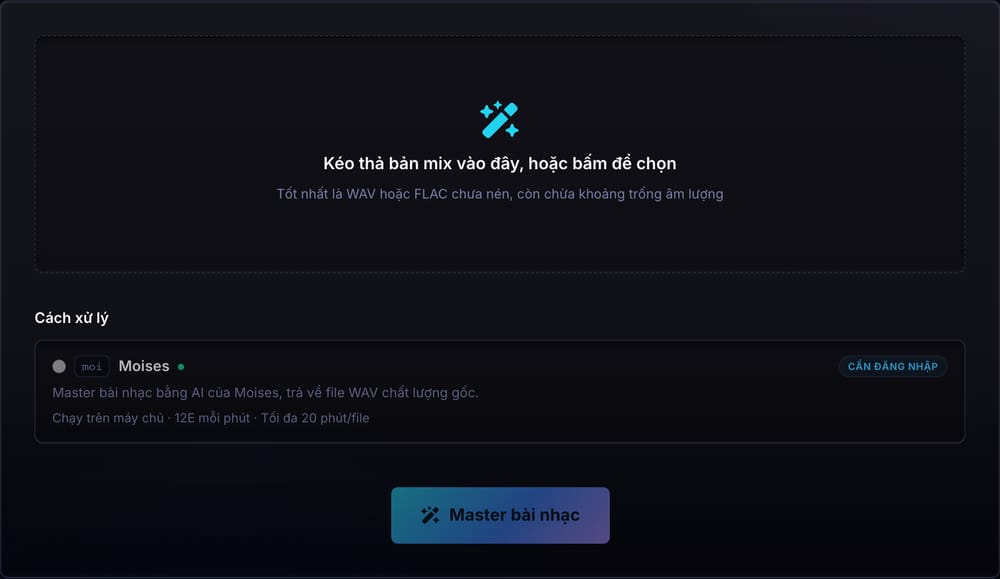
Mastering a song with AI is the fastest way to bring a finished mix to release loudness and balance without booking a mastering studio. The AI Mastering tool on Tách Nhạc takes your mix, processes it on our server, plays the original and the master on one transport, and returns a 24-bit, 44.1 kHz WAV.
What does mastering do, and what can it not do?
Mastering finishes a mix; it does not fix one. It works on the complete stereo mix rather than on individual tracks, with three jobs: rebalancing the overall frequency response, raising the level to release loudness, and tightening the dynamic range just enough for the track to feel solid.
Problems inside the mix survive mastering and usually get more obvious once everything is louder: a buried vocal, a muddy low end, one instrument masking the rest, or clipping baked in at export. The fix is in the mix session.
The AI runs those jobs as a fixed chain based on the characteristics of a large body of released tracks. It is fast and consistent, but it cannot hear the artistic intent of your particular song.
AI Mastering cannot fix a mix. A buried vocal, a muddy low end or an over-compressed bounce has to go back to the mix stage. Mastering a flawed mix only gives you a louder flawed track.
How to prepare your mix for mastering
A mix ready for mastering still leaves the mastering stage room to work. Check three things before you bounce:
- Leave headroom. Peaks sit clearly below full scale and nothing hits the ceiling. Raising the loudness is the job of mastering.
- Take the limiter or maximizer off the master bus if it is only there to hear the mix louder. An already heavily compressed mix leaves very little dynamic range to work with, and the result usually sounds choked and fatiguing.
- Export an uncompressed WAV or FLAC. The tool also accepts MP3 and other common formats, but a lossy file has already lost detail before the AI hears it.
Converting an MP3 to WAV does not bring lost detail back. If you are not sure a file is truly lossless, see how to spot fake lossless audio with a spectrogram.
Before you upload, open the mix in the Spectrogram viewer and check the loudest sections: a smear of noise running up the whole frequency range right where the track peaks is the sign of clipping. The full method is in reading a spectrogram while mixing.
LUFS and true peak: what do the loudness numbers mean?
LUFS is the unit of programme loudness defined in Recommendation ITU-R BS.1770 and used by the EBU R 128 standard to normalise audio. Integrated loudness is the average loudness of the whole track, measured from start to finish; Spotify uses this number to bring every track to the same playback level.
True peak, in dBTP, is the maximum peak level of the signal, measured to the same BS.1770 recommendation. Spotify advises keeping true peak at or below -1 dBTP because that suits lossy formats such as Ogg Vorbis and AAC. EBU R 128 sets the same -1 dBTP ceiling and notes that the permitted maximum may be lower for distribution systems that use data reduction.
| Source | Integrated loudness | True peak |
|---|---|---|
| Spotify, guidance for artists | -14 LUFS | At or below -1 dBTP, below -2 dBTP if the master is louder than -14 LUFS |
| EBU R 128, broadcast | -23 LUFS | Not above -1 dBTP |
| A master from AI Mastering | Around -8 LUFS, on par with current commercial releases | True peak limited, no exact ceiling stated on the tool page |
Spotify normalises every track to around -14 LUFS: louder tracks are turned down with no added distortion, and quieter tracks are turned up only as far as their true peak leaves room.
A master at around -8 LUFS will therefore be turned down by roughly 6 dB on Spotify. Turning down only changes the volume, so the squeezed dynamics do not come back: on Spotify, extra loudness is no advantage, and clarity and balance are what the listener gets. The tool page does not publish an exact true peak figure, so if the track is headed for Spotify, check the master with a BS.1770 loudness meter.
How do you A/B the original and the master fairly?
A comparison is only fair when both versions play at the same loudness. The master is always louder than the original, and while one version is clearly louder, you are comparing volume, not sound quality.
On the AI Mastering result, both versions share one transport. Press Original or Master to switch on the spot, and click a waveform to seek both. The tool does not level-match them for you, so turn your speakers down while the master plays until both sound equally loud, then listen for:
- Low end: tighter, or muddier and boomier.
- Top end: clearer, or harsher and more brittle.
- Vocal: still sitting where you put it, or pushed back into the track.
- Loudest section: still breathing, or squashed flat and fatiguing.
To compare the AI master against your own limited bounce or a reference track, use Audio comparison: every version plays on one clock with a volume slider that only turns down, so you lower the louder one to match. It runs in your browser and uploads nothing.
Step by step: mastering a song with AI on Tách Nhạc
On the spectrogram, a full-range smear in the loudest sections that the original does not show is a sign of distortion from being pushed too hard. Compare the low and high bands of both versions to see which way the AI moved the balance. If spectrograms are new to you, start with what is a spectrogram.
- Open AI Mastering and sign in. The tool runs on Energy and has no free runs.
- Drop or pick your final mix. The Energy amount for the track shows on the run button before you press it; a track over the length limit gets a notice and the button stays off.
- Press Master track. The file goes up to our server and Moises AI mastering rebalances frequency, loudness and dynamics.
- Press View spectrogram to open the master in the Spectrogram viewer, next to the spectrogram of your original.
- Download the WAV right away, because files are not kept indefinitely.
The price is per minute of audio and the Energy amount shows on the button before you press it, see pricing. A failed run gets its Energy back. If you do not like the result, adjust the mix and master it again, never master on top of a master.
When should you hire a mastering engineer?
AI Mastering suits label demos, listening copies, social posts, or hearing your mix at release loudness before paying for real mastering.
A human mastering engineer is the safer choice for a commercial release, or when the mix has an intent of its own that a fixed chain could flatten: a person hears context, genre and intent, and decides each move. The Tách Nhạc team masters by hand, and the contact button sits on the AI Mastering page.
Primary sources
Can AI mastering fix a mix with a buried vocal?
No. Mastering works on the finished stereo mix, so a buried vocal, a muddy low end or clipping stays in place and usually becomes more obvious once the track is louder. Fix it in the mix, then send it to mastering.
How many LUFS should a master be for Spotify?
Spotify recommends an integrated loudness of about -14 LUFS with true peak at or below -1 dBTP, or below -2 dBTP for masters louder than that. Spotify turns a master of around -8 LUFS down to that level.
How much does AI mastering cost on Tách Nhạc?
It is priced in Energy per minute of audio, and the amount for your track shows on the run button before you press it. Sign-in is required, there are no free runs, and a failed run is refunded. Figures are on the [pricing](/en/pricing/) page.
Is my audio file stored?
Your mix is uploaded to our server for mastering and files are not kept indefinitely, so download the master as soon as it is ready. [Audio comparison](/en/media-comparison/), by contrast, runs entirely in your browser and uploads nothing.