
How to Compare Two Audio Files by Ear: Fair A/B Listening
Compare two audio files by ear without fooling yourself: match loudness, switch A/B at the same spot, listen blind and score separations and masters.
Why is comparing two audio files by ear so easy to get wrong?
To compare two audio files by ear is to play two versions of the same recording and pick the better one: two vocal separations made with different processing methods, a mix and its master, a lossless file and a compressed one. The verdict is only worth something if the comparison is fair, and three habits of human hearing tilt it: we prefer the louder version, we forget detail fast, and we hear what we expect.
A louder version sounds clearer, fuller, with more bass and more top, even when nothing about its quality changed. The cause is how hearing handles frequency: our sensitivity to lows and highs shifts with playback level, as the equal-loudness contours standardised in ISO 226 show. Mastering engineer Ian Shepherd puts it plainly: turn something up and it will sound a little clearer and fuller.
So if version B is louder than version A, the test leans toward B before you have heard a single real difference. Two processing methods, two masters or two exports rarely land at the same loudness, so level matching comes first.
Audio comparison does not level loudness for you, and each version's volume slider can only lower, never raise, so the sound does not distort. Always bring the louder version down to the quieter one; never try to push the quieter one up.
Why switch at exactly the same spot?
Short-term auditory memory holds detail for only a few seconds, so any gap between listens erases the very thing you meant to compare. Stop A, open B, scrub back to the same bar, and by the time B starts, the shimmer of the cymbals in A is just a vague impression.
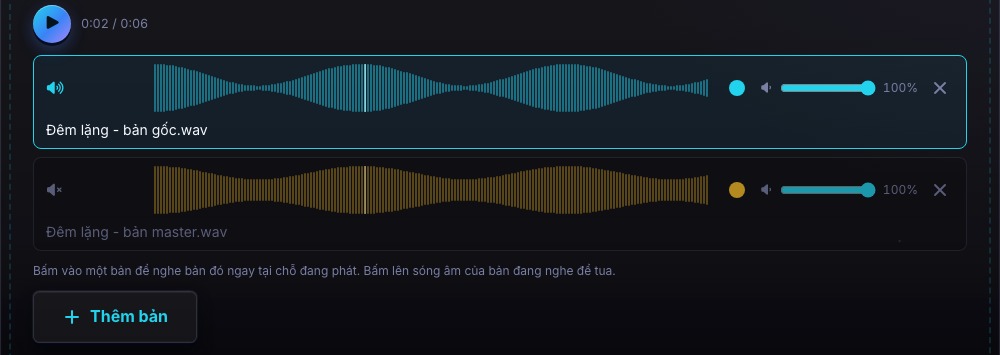
Audio comparison plays every version at once on one shared position and lets you hear only one of them. Press a row to change which version you hear and the music carries on from the same spot, with no break and no restart. Click the waveform of any row and every version jumps to that position, so replaying one vocal line in both versions takes a single click.
Your ear then compares the same note in two versions back to back, which is why the tool only works with versions of the same recording: two cover versions, or two versions out of step with each other, do not line up second by second and sound broken when you switch.
How to run a fair A/B listening test, step by step
Check a quiet and a loud passage because the difference between two versions is rarely even across a song. Two masters can sound almost identical in the intro and clearly different in the chorus, where compression works hardest; a separation can be clean where the voice is alone and leak drums once the full band comes in. Your sense of lows and highs also changes with level, so each passage gives you a different angle.
For a more exact match than your ear, measure each file with a loudness meter that follows ITU-R BS.1770, reading in LUFS, the scale the EBU R 128 broadcast recommendation uses. It tells you which file is louder and by how much; you still lower that one with its slider and confirm by ear.
- Gather versions of the same recording that run in step from the start of the track. Video files load too; the tool plays only their sound.
- Open Audio comparison and drag in or choose the files. Each file becomes a row labelled with its own file name and its own colour; the first file is the one you hear first.
- Press play and switch a few times only to find out which version is louder. Pull that version's volume slider down until the versions sound equally loud.
- Pick a demanding passage, click the waveform of the version you hear so every version jumps there, hear it on this version, then press the row of the other one. Repeat a few rounds on that same passage.
- Do the same on a quiet passage, such as the intro or first verse, and on a loud one, such as the chorus.
- Write down your pick after each passage, and only then look at the overall result.
How do you listen blind when the screen shows each version?
Blind listening means scoring without knowing which version is playing, because knowing the name alone is enough to bend your judgement. In Floyd Toole and Sean Olive's experiment at Harman, the same loudspeakers received significantly different quality ratings when listeners could see them than when they could not; with the speakers in view, brand, size and price swayed listeners more than the sound did.
In Audio comparison the file names always show on each row, so listening blind takes a second person. Turn away from the screen while a helper switches in random order and notes which version is playing each time; you only say "this one is better" or "that one is better". After a run of rounds, compare notes: if you picked the same version in most rounds, the difference is real; if your picks split evenly, you were guessing.
The stricter form of this is the ABX test, where the listener must say whether a hidden version X is A or B. Pure guessing is right half the time, so only many correct rounds prove a difference.
Listening alone? Have someone rename the files to neutral names before you load them, so no name hints at the version you hope will win.
Which pairs are worth comparing?
A music separation result is an AI reconstruction, not the original studio track, so the useful question is not "which one sounds like the original" but "which one has fewer flaws where I need it". To choose a processing method before you separate, see free vocal remover software, apps and websites compared; to see differences as well as hear them, read reading a spectrogram for mixing.
AI Mastering and Mono to Stereo already include A/B listening between the original and the result on their result pages. Audio comparison earns its place when you need more than two versions, such as a new master against an old one, or when the files are already on your device.
| Pair | What to listen for | Watch out |
|---|---|---|
| Two processing methods in Music separation, such as Spleeter and HTDemucs | Instrument bleed in the vocal layer, artefacts on breaths and hissy consonants | Compare like with like: vocals against vocals, instrumental against instrumental |
| A mix and its AI Mastering result | Clarity, body, whether the drums keep their punch or get squashed | The master is usually louder, so lower it before you listen |
| A mono original and its Mono to Stereo result | Width, instrument placement, whether the vocal stays centred | Use headphones; the wider version tends to impress, so listen blind |
| A lossless file and a compressed copy | Cymbals, applause, reverb tails | At high bitrates the difference may be tiny; this pair needs blind listening most |
| Two downloads of the same track | Brightness of the top end, background hiss | Also check them visually on a spectrogram |
What Audio comparison does not do
Before comparing stereo versions, make sure both sides of your headphones play evenly with the left and right speaker and headphone test; a weak earpiece skews every judgement about width.
Audio comparison works the moment the page opens: nothing to install, no account required and no Energy charged. Your files play from your own device and are not uploaded to any server. The tools that create versions worth comparing, such as server-side separation or AI Mastering, show the Energy cost before each run; prices are on the pricing page.
- It does not match loudness for you, and each slider only lowers a version, never raises it.
- It makes no new file: it only plays so you can listen and compare.
- It cannot compare two cover versions or two versions out of step with each other.
- The number of versions at once and the size of each file are capped; the specifications table on the tool page lists both.
- It has not been tested on Safari, Firefox or iPhone; on iPhone the volume slider may have no effect.
- If the browser cannot open a format, that version's row shows an error and the other versions keep playing.
Primary sources
- So sánh âm thanh
- Production Advice: How to level match your music
- Wikipedia: Equal-loudness contour
- Sean Olive: The Dishonesty of Sighted Listening Tests
- Wikipedia: ABX test
- Wikipedia: Echoic memory
- ITU-R BS.1770: Algorithms to measure audio programme loudness and true-peak audio level
- EBU R 128: Loudness normalisation and permitted maximum level of audio signals
Does Audio comparison match loudness automatically?
No. You lower the louder version with its own volume slider until the versions sound equally loud; the slider can only lower, never raise, so the sound does not distort.
Can I compare two cover versions of the same song?
No. The tool is built for versions of the same recording; two covers, or two versions out of step with each other, do not line up second by second and sound broken when you switch.
Are my files uploaded to a server?
No. The files play right in your browser from your own device's memory and are not sent to any server.
Does Audio comparison cost Energy?
No. The tool charges no Energy and needs no account; the caps on versions at once and file size are listed on the tool page.