
Removing vocals on a phone with no app install: iPhone and Android
Remove vocals on your phone right in the browser, no app install, and no need for a flagship iPhone or Android to do it.
Do you need to install an app to separate music on a phone?
No. Music separation on a phone runs right in your phone browser, not an app from the App Store or Play Store. Open the browser, go to the page, upload a file or paste a link, hit separate, done.
The reason this works on a phone: by default the tool runs separation on the server engine (Spleeter), not on your phone's own chip. The browser only sends the file and receives the result back, much like sending a file over the network, so an older or weaker phone works just fine.
How do you separate music on an iPhone?
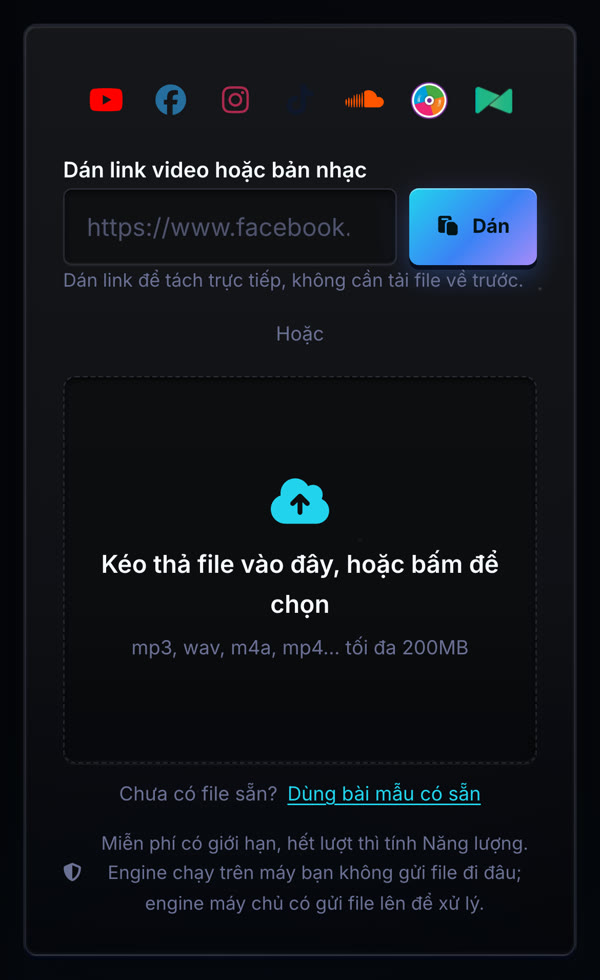
Open Safari on your iPhone, go to the separation page, drag in or pick a music file from the Files app, or paste a YouTube or TikTok link into the link box. Pick 2 layers if you only need the vocal and the beat, or 4 layers to also split drums and bass, then hit separate.
Because the heavy processing runs on the server, Safari on iPhone never has to download a hundreds-of-MB AI model first, unlike a dedicated app that has to fetch model data before its first use.
How do you separate music on Android?
The steps are identical to iPhone, only the browser differs: open Chrome or your default Android browser, go to the separation page, upload a file from storage or paste a link, pick how many layers you need, hit separate. There is no Android-specific step.
A budget Android phone works just as well, for the same reason: separation runs on the server by default, and the phone only sends and receives files.
Can you paste a YouTube link from your phone?
Yes. Copy the video link from the YouTube or TikTok app on your phone, paste it into the link box on the separation page, the server fetches it, and you separate straight from that fetched file, with no need to download the video to your phone first. This flow is identical to desktop, with no separate mobile version.
See extracting music from a YouTube or TikTok video if you just want the whole track as an MP3 and do not need it split into layers yet.
Where does the separated file get saved on your phone?
Once separation finishes, each layer (vocal, beat, or each instrument) has its own download button right on the page. Tapping it saves the file wherever your phone browser already saves downloads, usually the Files app on iPhone or the Download folder on Android.
You can also preview each layer on the page before downloading, so you never have to pull down every layer if you only need one.
Sign in before separating so your results are kept in your history, making it easy to find an old result again without re-running the separation.
Primary sources
Is separating music on a phone slower than on a computer?
Not meaningfully, since the heavy AI processing runs on the server either way; speed mostly depends on your network connection, not on your phone or computer.
Does an older iPhone still work for this?
Yes, even an older model, because separation runs on the server engine by default and does not require an on-device AI chip.
Is there a dedicated phone app?
No, and none is needed. The separation page runs directly in your phone browser, with no separate app to install for full functionality.